Azure quota groups reference
Where this fits: step 2 of the capacity supply chain. Use quota groups after you unblock regions and zones so you can stage VM-family headroom for multiple subscriptions. Source
Azure quota groups are Azure Resource Manager (ARM) objects that let you share and self-manage compute quota across a set of subscriptions. This page aggregates key prerequisites, limitations, lifecycle behavior, and monitoring options from the official documentation so you can reason about quota groups alongside the other guides in this site, and you'll see where each Microsoft article fits.
Feature overview
- Quota groups elevate quota from a per-subscription construct to a group-level ARM resource created under a management group, while quota enforcement at deployment time still occurs at the subscription level.
- The feature supports quota sharing across subscriptions, self-service reallocation of unused quota, and group-level quota increase requests that can later be allocated to individual subscriptions.
- Supported scenarios in the documentation include deallocating unused quota from subscriptions into the group, allocating quota from the group back to target subscriptions, and submitting quota group limit increase requests for specific regions and VM families.
Prerequisites
- The
Microsoft.QuotaandMicrosoft.Computeresource providers must be registered on all subscriptions you plan to add to a quota group. - A management group is required to create a quota group. The group is created at the management group scope and inherits read and write permissions from that parent.
- Subscriptions from different management groups can be added to the same quota group; subscription membership is independent of the management group hierarchy as long as permissions allow it.
- The official guidance calls out the following roles for operating quota groups:
- Assign the GroupQuota Request Operator role on the management group where the quota group is created.
- Assign the Quota Request Operator role on participating subscriptions for users or applications that perform quota operations.
- Assign Reader on participating subscriptions for users or applications that need to view quota group resources in the portal.
Limitations and scope
- Quota groups are available only for Enterprise Agreement, Microsoft Customer Agreement, and internal subscriptions.
- They currently support IaaS compute resources only and are available in public cloud regions.
- A subscription can belong to only one quota group at a time, as noted in both the limitations and subscription management documentation.
- Quota groups focus on quota management; they don't grant regional or zonal access. Region and zonal access still require separate support requests, and quota transfers or deployments can fail if the target subscription lacks region or zone access.
- Management group deletion affects access to the quota group limit. You must clear out group limits and delete the quota group object before deleting the management group, or recreate the management group with the same ID to regain access.
ARM object and lifecycle behavior
- Quota groups are global ARM resources created at the management group scope and designed as an orthogonal grouping mechanism for quota management, separate from subscription placement in the management group hierarchy.
- Subscription lists aren't automatically synchronized from management groups; instead, you explicitly add and remove subscriptions to control which ones participate in group-level quota operations.
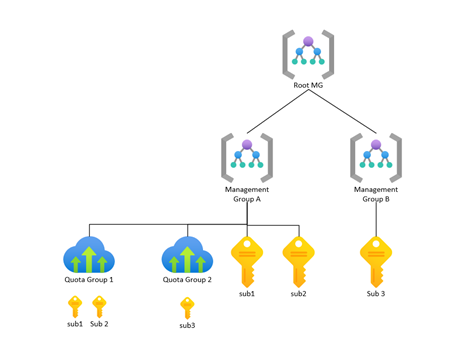
- Creating or deleting a quota group requires the GroupQuota Request Operator role on the management group.
- When you add subscriptions to a quota group, they carry their existing quota and usage; adding them doesn't change their subscription limits or usage values.
- When you remove subscriptions from a quota group, they retain their existing quota and usage. The group limit isn't automatically changed by removal operations.
- At creation time, the quota group limit is set to zero. You must either transfer quota from a subscription in the group or submit a quota group limit increase request and wait for approval before the group can allocate capacity.
- Before deleting a quota group, all subscriptions must be removed from it, as described in the create/delete guidance.
Quota transfers and allocation snapshots
- The "Transfer quota within an Azure Quota Group" article describes how to move unused quota from a subscription to the group (deallocation) or from the group to a subscription (allocation) using the quota group ARM object.
- Quota allocation snapshots expose, for each subscription in the group, a Limit value (current subscription limit) and a Shareable quota value that reflects how many cores have been deallocated or transferred between the subscription and the group.
- The example in the snapshot section shows a shareable quota of
-10to indicate that 10 cores were given from the subscription to the group, alongside a new subscription limit of 50 cores for the corresponding VM family and region. - These documented fields give you a consistent view of how quota is distributed between the group and its member subscriptions without changing how deployments are evaluated against per-subscription limits.
Monitoring and alerting
- The Quotas experience in the Azure portal includes a My quotas view that continuously tracks resource usage against quota limits for providers such as Microsoft.Compute, and supports alerting when usage approaches limits.
- The quota monitoring and alerting documentation explains that quota alerts are notifications triggered when resource usage nears the predefined quota limit, and that you can create multiple alert rules across quotas in a subscription.
- The "Create alerts for quotas" article documents how to create alert rules from the Quotas page by selecting a quota name in My quotas, choosing an alert severity, and configuring a usage-percentage threshold for triggering alerts.
- While quota group operations are scoped to a management group, the quota monitoring and alerting features give you a way to observe usage and quota consumption trends for the underlying subscriptions that participate in the group.